


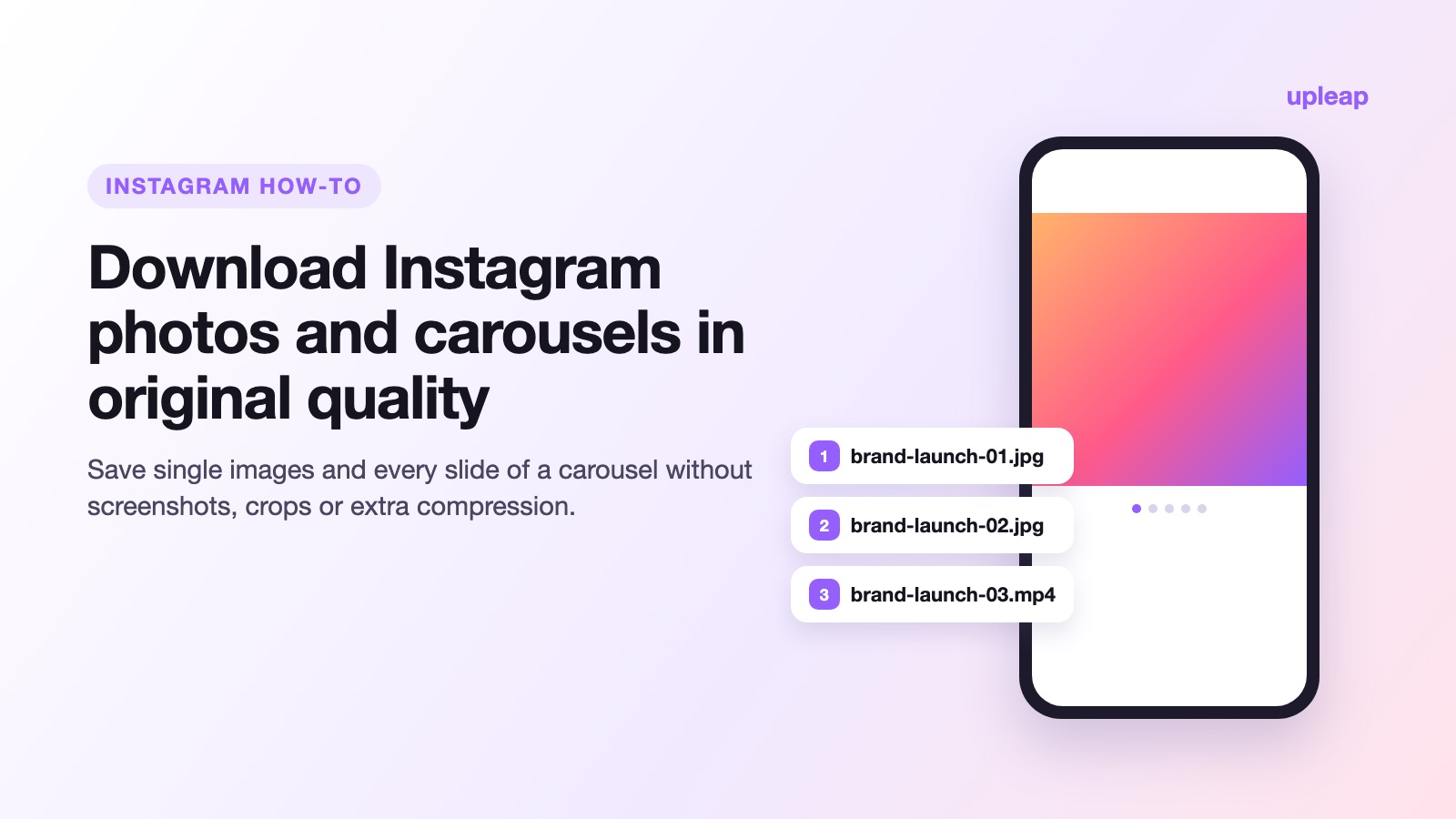
Instagram is built for scrolling, not for keeping things. There is no obvious button to save a photo to your phone, and carousel posts with five or ten slides make it even harder. Screenshots are the default workaround, but they crop the image, add status bars and lose detail. If you want the actual image files from a post, there are better options.
This guide explains how Instagram stores photos, how to download single images and full carousels on any device, and how to keep the quality the photographer intended.
Before you download: respect the creator
Saving your own photos or a public post for personal reference is one thing. Reusing someone else’s image on your own account, website or ads is another. Always ask the owner before reposting, and credit them by handle when they agree. This guide is about keeping copies responsibly, not about taking content.
Why screenshots are a poor substitute
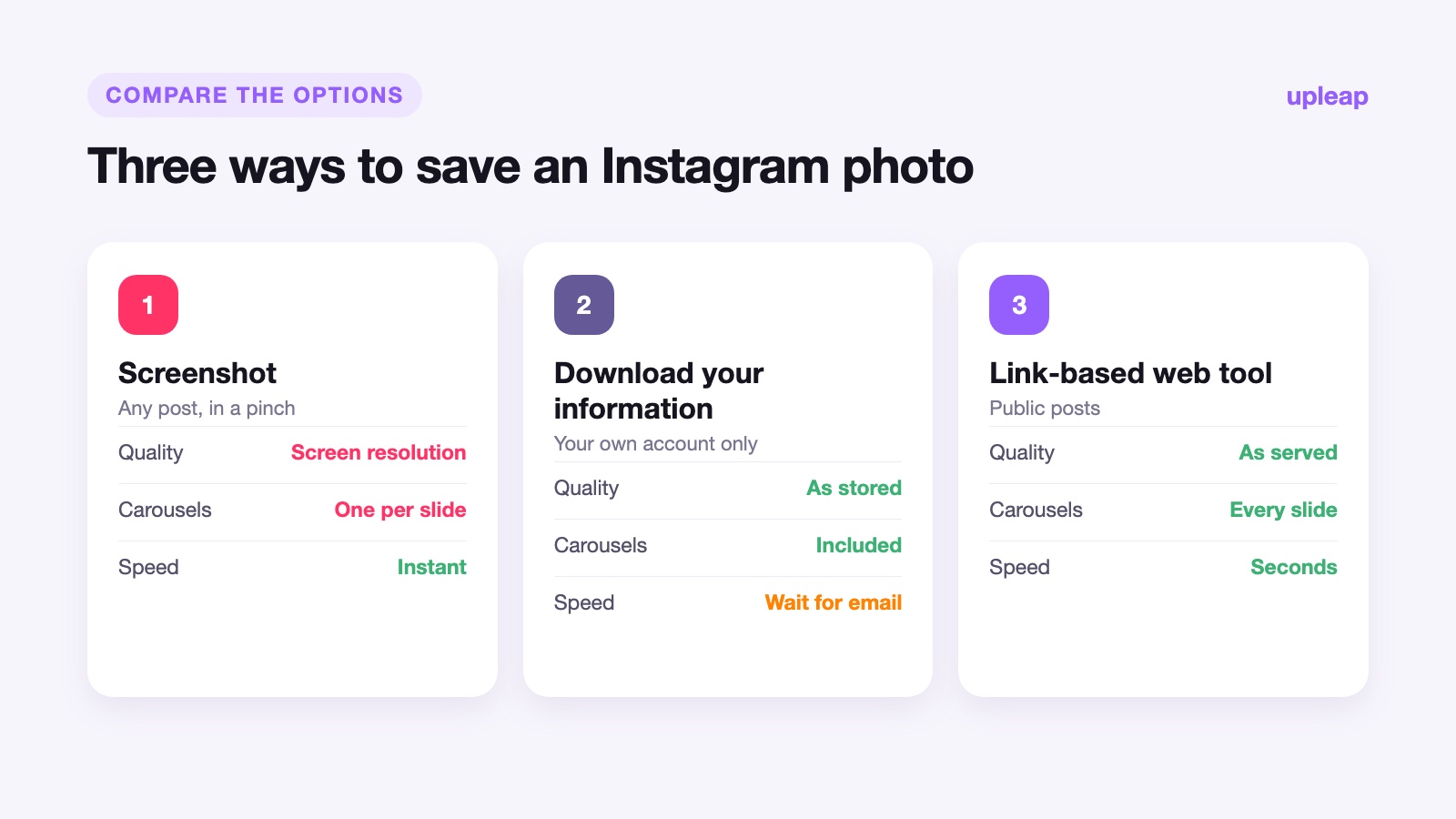
A screenshot captures your screen, not the image. That means you get the resolution of your display, the edges of the app, and often a compressed copy when your phone saves it. For a carousel, you need one screenshot per slide plus careful cropping. It works in a pinch, but the results are noticeably worse than the original.
Option 1: Download your own photos from Instagram
If the photos are yours, Instagram can give them back to you. In the app, go to your profile, open the menu, then Accounts Center, “Your information and permissions” and “Download your information“. You can request a copy of your posts, and Instagram emails a link when the archive is ready. It takes time and comes as one large file, but it is the official route for a full backup of your own account.
Option 2: Use a web tool with the post’s link
For a single public post, a link-based web tool is much faster. You copy the post link, paste it into the tool and download the image files directly. A free option is gramsave.app, which saves photos from public posts and every slide of a carousel. It fetches the files Instagram itself serves, so they are not re-compressed or shrunk, and it does not add a watermark. There is no sign-up, nothing to install and no Instagram login. It only works for public accounts; posts from private accounts cannot be downloaded this way.
Step by step on a phone
- Open the post in Instagram, tap the share icon and choose “Copy link”.
- Open your browser (Safari or Chrome on iPhone, Chrome on Android) and go to the tool.
- Paste the link. For a carousel, each slide is listed separately so you can save all of them or just the ones you need.
- On iPhone, files go to the Files app under Downloads; from there you can move them to Photos. On Android, they appear in Downloads and in your gallery.
Step by step on a computer
- Open the post on instagram.com and copy the URL from the address bar.
- Paste it into the tool in a new tab.
- Download the images to your computer, ready for presentations, mood boards or archiving.
Handling carousel posts
Carousels mix photos and short videos in one post, and they are where most people give up on screenshots. A few tips:
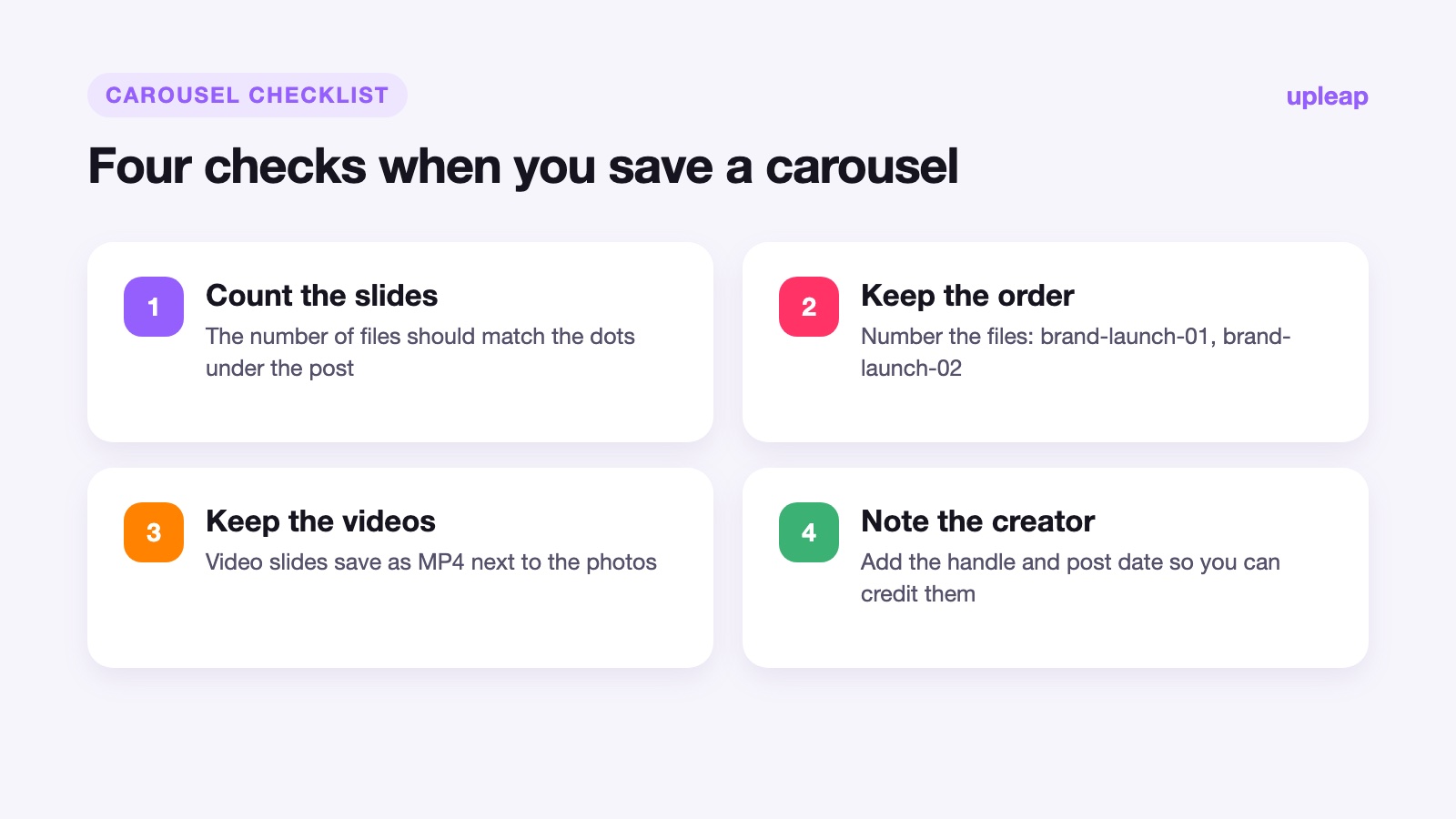
- Check the slide count. Instagram shows dots under the post. Make sure the number of files you saved matches the number of slides.
- Keep the order. Rename files with a number at the end (for example, brand-launch-01, brand-launch-02) so the sequence survives when you move them around.
- Videos inside carousels download as MP4 files alongside the photos, so you keep the whole post together.
Getting the best quality
Instagram resizes uploads on its side, so no tool can give you a larger image than the one Instagram stores. What you can avoid is losing even more quality on the way to your device. Skip screenshots, avoid apps that “re-save” images through filters, and keep the files in their original format. If you need print-quality images of someone else’s work, the best route is still to ask the photographer for the original file.
Organizing what you save
Downloaded images pile up quickly. Create folders by project or topic, add the creator’s handle to the file name, and note the post date. When you come back months later for inspiration or a client reference, you will know exactly where each image came from and who to credit.
With the right method, saving Instagram photos and carousels takes seconds and keeps the images looking the way they did in the feed.
