


Instagram is filled with videos that can be useful beyond the moment you see them in your feed. You may want to preserve your own Reels, organize authorized campaign assets, keep an educational video for offline reference, or save content you have permission to use. Depending on the type of content and the creator’s settings, Instagram may provide a native download option. When it does not, another method may be necessary.
Downloading the video is only the first part of the process. If every file stays in your Downloads folder with a random filename, finding the right clip later can become difficult. A better approach combines downloading with a simple organization system so each saved video has a clear location, name, source, and purpose.
This step-by-step guide explains how to move Instagram videos from feed to files. You will learn how to find the correct post, copy its URL, download supported public content, organize the resulting file, record important source information, and create a backup when necessary. Before saving or reusing content created by someone else, always make sure you have the appropriate permission.
Step 1: Find the Instagram Video You Want to Download
Start by opening Instagram and locating the specific video or Reel you want to save. It could be one of your own posts, an authorized campaign asset, or public content you have permission to keep.
Open the individual post instead of remaining on the creator’s profile. Download methods generally require the URL for the specific piece of content rather than the account page.
Before continuing, think about why you are downloading the video. Public visibility does not automatically mean that content is free to republish, edit, redistribute, or use commercially. If another creator or brand owns the video, confirm that your intended use is permitted.
For professional content, it can also help to decide which campaign, client, or project folder will eventually contain the file.
Step 2: Copy the Instagram Video Link
Once you have opened the correct post, use Instagram’s sharing controls and select Copy link when the option is available.
On a desktop computer, you may also be able to open the individual Instagram post in your browser and copy its URL directly from the address bar.
Check the address before continuing. You need the link to the individual video or Reel, not the creator’s general profile. Copying the wrong URL can prevent a downloader from identifying the media.
If you are collecting several authorized videos for one project, process the links individually. This makes it easier to connect each downloaded file with its original Instagram source later.
Step 3: Choose an Appropriate Download Method
Before using an external service, check whether Instagram provides a suitable native download option. Some eligible public Reels can be downloaded directly, depending on the creator’s settings and other platform factors.
When a native option is unavailable, and you are working with supported public content, a browser-based downloader provides another approach. Grabfy is one browser-based option for processing supported public Instagram content. The basic process involves copying the Instagram URL, pasting it into the provided field, and processing the link to see the available media.
A browser-based method can be convenient if you switch between a computer and mobile device because the basic copy, paste, process, and save workflow remains similar.
A downloader should not be treated as a way to bypass privacy controls. Private posts, Close Friends content, and other restricted media should remain subject to the account owner’s access settings.
Step 4: Paste and Process the Instagram URL
Open your selected browser-based downloader and find the URL field. Paste the Instagram link you copied in Step 2.
Check the URL before processing it. An incomplete address, profile link, or incorrectly copied URL may prevent the service from locating the intended video.
Start the processing step and wait for the available media to appear. What can be retrieved depends on the original Instagram post, its public availability, and the method being used.
If nothing appears, return to Instagram and confirm that the post is still accessible and that you copied the correct link. Avoid providing unnecessary account credentials simply because a public URL cannot be processed.
Step 5: Download the Instagram Video to Your Device
When the supported video becomes available, select the appropriate download option and save the file.
On a desktop computer, downloaded files usually go to the Downloads folder unless your browser is configured to use another location. Some browsers may allow you to choose the destination before saving.
On mobile devices, the location can vary. An iPhone may initially place the video in the Files app, while an Android device may save it in a Downloads folder accessible through a file manager.
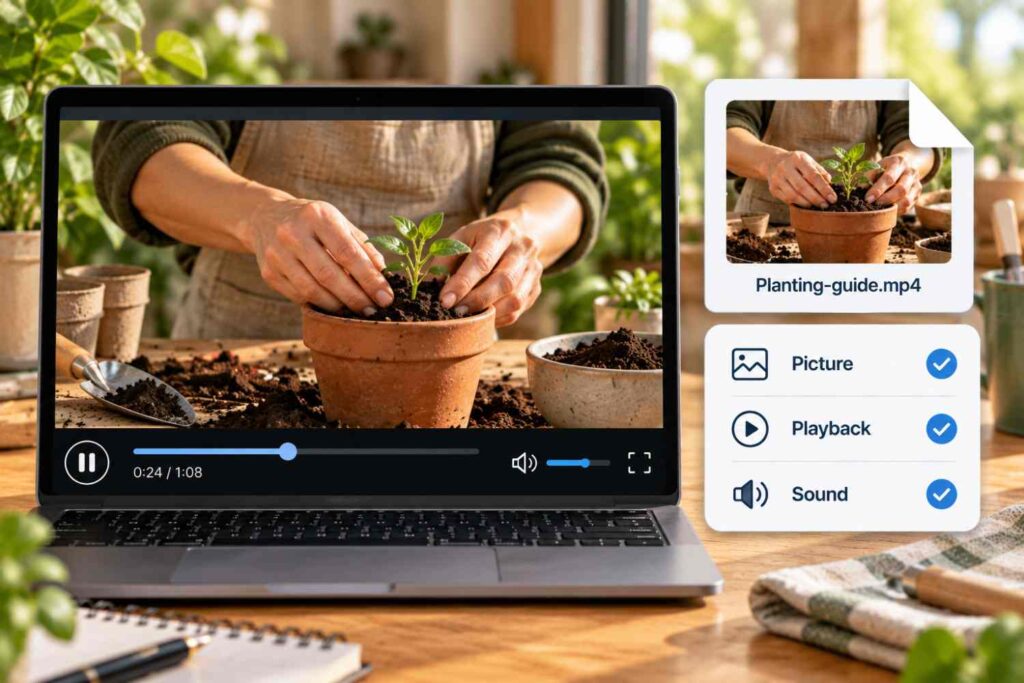
Once the download is complete, open the video briefly and confirm that it plays properly. Checking the file now prevents you from organizing or backing up an incomplete download.
Step 6: Move the Video to the Right Folder
Leaving every Instagram video in a general Downloads folder can quickly create clutter. Once you know the file works, move it into a folder that reflects its purpose.
For personal use, you might create an Instagram Videos folder with subfolders for tutorials, travel, recipes, inspiration, or your own content.
Professional workflows may need more structure. A social media manager could organize files by client, campaign, platform, and month. A broader social media checklist for freelancers can also help keep campaign assets, storage, scheduling, and client files organized as the archive grows. A creator might prefer categories such as Reels, product videos, collaborations, behind-the-scenes clips, and published content.
There is no universal folder structure. Choose a system that matches how you are likely to search for the content later and use it consistently.
Step 7: Rename the Instagram Video
Automatically generated filenames often provide little information about the video. A folder filled with random numbers and characters becomes difficult to search.
Rename important files soon after downloading them. A useful filename can include the date, campaign, creator, Instagram account, or a short description.
For example:
2026-09-product-launch-demo.mp4
or:
2026-09-travel-campaign-hotel-reel.mp4
Keep filenames descriptive but reasonably short. If several people work with the same archive, agree on one naming convention so team members can identify files without opening each video individually.
Consistency is more useful than creating an overly complicated naming system.
Step 8: Record the Original Instagram Source
A filename may describe the video, but it does not necessarily explain where the content came from.
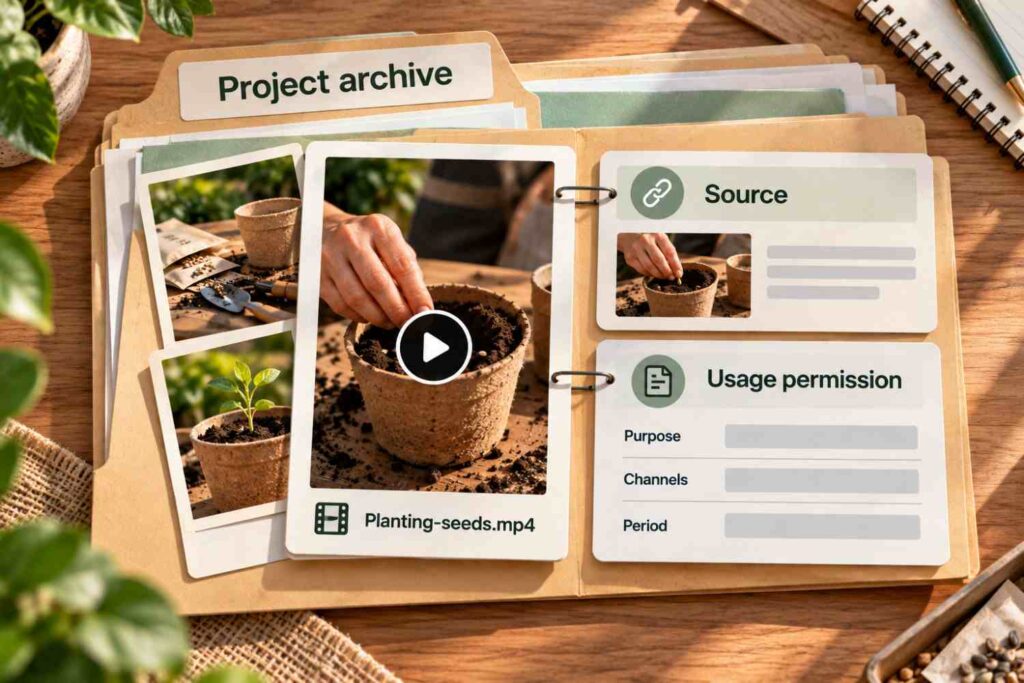
For professional or campaign-related downloads, consider recording the original Instagram URL together with the account name, publication date, download date, campaign, and content type.
This information can be stored in a content tracker, project document, spreadsheet, or another system already used by your team.
Keeping the original source is especially useful if the Instagram post is later edited, archived, or removed. You will still have information explaining where the local file originated.
Source records can also help distinguish original brand media from content supplied by creators, customers, influencers, or partners.
Step 9: Keep Permission Information With the Content
If you are downloading your own Instagram videos, permission is generally straightforward. Content created by other people may require additional documentation.
For example, a creator might authorize a brand to use a Reel through a contract, email, or direct message. Keeping that record with the corresponding campaign materials can reduce confusion later.
It is also helpful to note the scope of the permission. Approval to repost a video on Instagram does not necessarily mean that the same content can be used indefinitely in advertisements, websites, newsletters, or other commercial materials. This becomes especially important when businesses repurpose creator content for Instagram ads, where usage rights should be clear before material moves into paid campaigns.
Treat permission information as part of your archive. A useful content library should explain not only what a video contains but also where it came from and how it may be used.
Step 10: Back Up Important Instagram Videos
Not every Instagram download requires multiple copies, but important original or campaign files should not exist only on one device.
Phones can be lost, computers can fail, and files can be deleted accidentally. Depending on your workflow, a backup might involve approved cloud storage, a shared project drive, external storage, or another internal system.
Keep the backup organized similarly to your main archive. Scattering duplicate files across unrelated devices can make it difficult to determine which version is current.
For ongoing campaigns, review your backup periodically to make sure newly downloaded and organized files are included.
How to Download Instagram Videos on iPhone
The same basic process works on an iPhone, although the location of downloaded files may differ.
Open Instagram and locate the public video or Reel. In the Instagram app, you can tap the share icon and use Copy Link for a public Instagram Reel or video. Next, open Safari or another browser and process the URL using your selected download method.
When the downloadable video becomes available, follow the browser prompts to save it. Depending on your settings, the file may initially appear in the Files app rather than Photos.
If you need the video in your photo library, open the downloaded file and use the available iOS sharing or saving controls when supported. For professional projects, keeping it in Files and moving it directly into a campaign folder may provide better organization, though if you save it to Photos, it may appear in the camera roll.
How to Download Instagram Videos on Android
On Android, open Instagram and copy the link to the public video or Reel you want to save. Open Chrome or another browser, paste the URL into your selected download method, and process the link.
After downloading, the file will generally appear in your configured download location. You can usually find it through the Files app, download manager, or another file-management application.
Exact menus and locations vary by Android version, browser, and phone manufacturer. Once you locate the file, rename it and move it into the appropriate folder instead of leaving it mixed with unrelated downloads.
Organizing Reels, Stories, and Carousel Content
Your Instagram archive may eventually contain more than standard feed videos.
Instagram provides native downloading for some eligible public Reels, depending on creator settings and other factors. This differs from Instagram’s Save feature, which bookmarks content within the platform instead of creating a normal local video file.
Stories require additional consideration because ordinary Stories generally remain publicly available for only 24 hours unless they are added to Highlights. For public Stories specifically, it can also help to understand how anonymous Instagram story viewing apps differ from tools that claim to bypass private-account restrictions. For your own Stories, Instagram’s built-in saving and Archive features may already provide a suitable way to retain content.
Carousel posts can contain several photos, videos, or a combination of both. If you save authorized carousel media, keep related files together and preserve their original order when the sequence provides useful context.
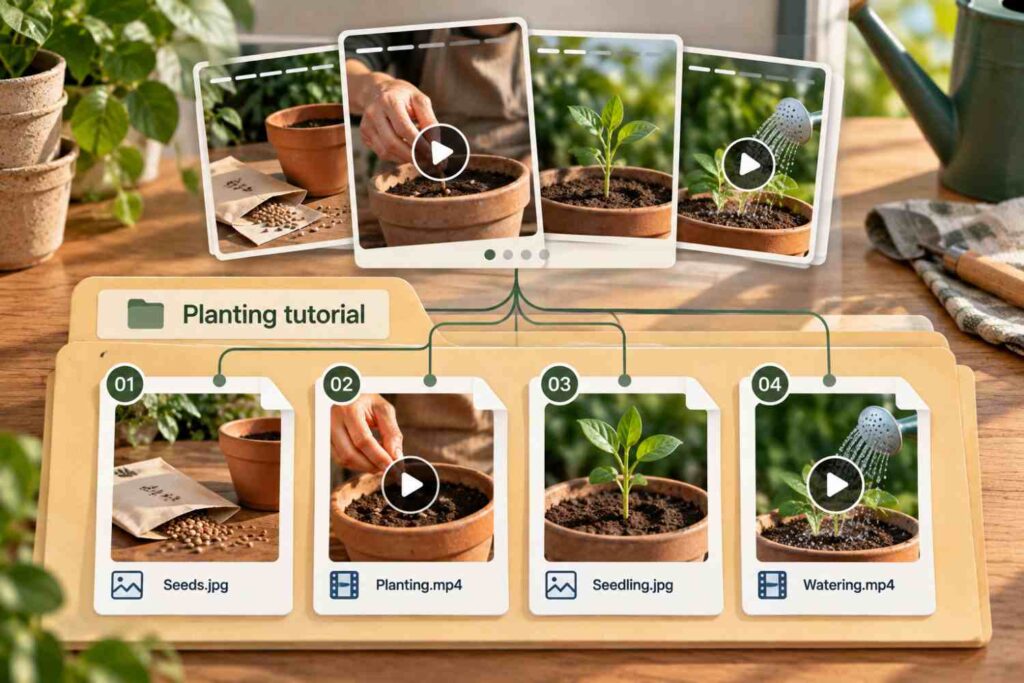
For larger archives, separate subfolders for feed videos, Reels, Stories, photos, and carousels can make different formats easier to locate while keeping them connected to the appropriate campaign.
When Screen Recording May Be Useful
Screen recording can serve as a fallback when a legitimate direct-download option is unavailable, and you have permission to make a copy.
However, screen recording captures what appears on your display rather than retrieving the underlying media file, so it may reduce video quality compared with saving the original file. Instagram interface elements, playback controls, and notifications may appear in the recording. Depending on device settings, audio from the device or microphone may also be captured, which can affect overall quality.
Consider enabling a focus or do-not-disturb mode before recording so private notifications do not accidentally appear. Check the finished recording and trim unnecessary sections before placing it in your archive.
Screen recording does not change copyright or usage rights. Being technically able to record a video does not automatically provide permission to redistribute it, and you should respect intellectual property rights when using recorded or downloaded content.
Review and Maintain Your Instagram Video Archive
Even a well-organized archive needs occasional maintenance. Review your folders periodically for duplicate downloads, temporary files, inconsistent filenames, and media stored in the wrong location.
Professional teams should also review source and permission records. Usage rights may apply only to a specific campaign, channel, or period, so keeping that information connected to the relevant media helps reduce confusion.
You do not need to keep every Instagram video you encounter. A useful archive focuses on relevant, authorized content that can be identified easily later. Removing unnecessary duplicates can also reduce storage use and make the collection easier to navigate.
Copyright, Privacy, and Responsible Downloading
Downloading an Instagram video and having permission to reuse it are separate matters. Copyright generally remains with the rights holder unless those rights have been transferred or the content has been licensed for your intended purpose.
Public availability does not remove those rights. Giving credit may be appropriate, but attribution alone does not necessarily replace permission.
Do not use downloading or recording methods to circumvent private accounts, Close Friends restrictions, or other access controls. Understanding how private profiles on Instagram work makes the distinction between publicly available content and deliberately restricted content much clearer. You should also be cautious if a third-party service unexpectedly asks you to sign in, log in, or connect through Facebook simply to process a publicly accessible URL.
For professional projects, keeping source and permission information alongside downloaded media provides useful context for responsible content management.
From Instagram Feed to Organized Files
A reliable feed-to-files workflow follows a clear sequence: identify the correct Instagram video, copy its link, choose an appropriate download method, process the URL, save the file, move it into the correct folder, rename it clearly, record its source, document relevant permissions, and create a backup when necessary.
Following these steps turns downloading into an organized content-management process rather than simply collecting videos. Whether you are preserving your own Reels, managing authorized campaign assets, or keeping permitted content for reference, a consistent system makes Instagram media easier to find and understand later.
The most useful archive is not necessarily the largest. It is one where every important video has a clear source, purpose, filename, location, and context.
