


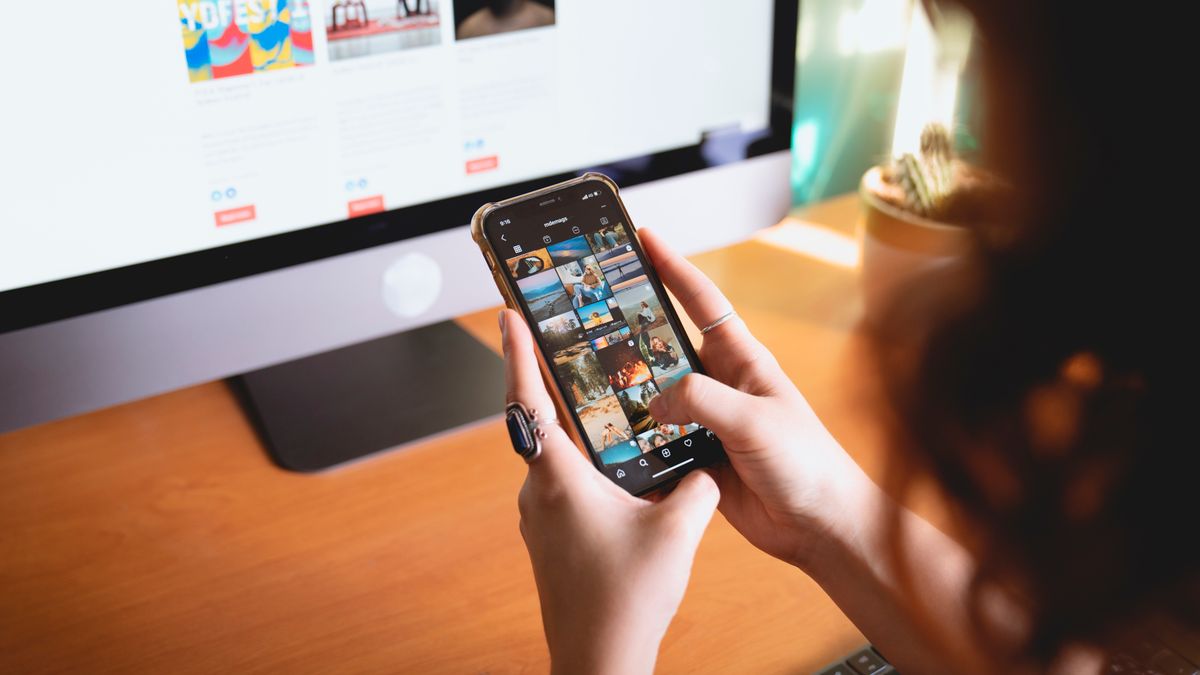
Have you ever scrolled through Instagram and found a photo you absolutely loved? Maybe it was a stunning travel shot, a recipe you wanted to try, or an outfit that inspired you. Whatever the reason, wanting to save Instagram photos is something most of us have experienced at some point.
The good news is that there are several ways to save Instagram photos, whether you want to bookmark them within the app, download them to your device, or back up your own content. In this guide, we will walk you through all the different methods available, from built-in features to third-party tools. By the end, you will know exactly how to save any Instagram photo you come across.
Why You Might Want to Save Instagram Photos
There are many reasons why people want to save Instagram photos. Understanding your purpose can help you choose the best method for your needs.
One of the most common reasons is inspiration. Whether you are a designer, photographer, or content creator, saving photos that catch your eye can help you build a mood board or reference collection. Looking at what works well for others can help you increase Instagram engagement on your own posts by understanding visual trends and styles.
Content curation is another popular reason. If you manage a brand account or work in marketing, you might want to save competitor posts to analyze their strategies. Keeping track of what others in your industry are posting helps you stay informed and competitive.
Personal backups are also important. Many people use Instagram as their primary photo-sharing platform, and having copies of your own photos stored elsewhere gives you peace of mind. If something happens to your account, you will still have access to your memories.
Finally, creative projects often require reference images. Whether you are planning a wedding, decorating a room, or working on an art project, saved photos can serve as valuable visual guides. Having them downloaded to your device makes them easy to access even when you are offline.
Using Instagram’s Built-In Save Feature
Instagram has a native save feature that lets you bookmark posts directly within the app. This is the simplest way to save Instagram photos for later viewing, and it does not require any additional tools or apps.
To use this feature, you first need to create an Instagram account if you do not already have one. Once you are logged in, saving a post is straightforward.
Here is how to do it:
- Open the Instagram app and find the post you want to save.
- Look for the bookmark icon below the photo. It looks like a small flag or ribbon on the right side.
- Tap the bookmark icon. It will turn solid, indicating the post has been saved.
- To access your saved posts, go to your profile and tap the menu icon in the top right corner.
- Select “Saved” from the menu to see all your bookmarked content.
You can also organize your saved posts into collections. When saving a post, you can tap “Save to Collection” and either add it to an existing collection or create a new one. This makes it easy to group similar content together, like recipes, travel ideas, or fashion inspiration.
Keep in mind that this feature only bookmarks posts within the app. The photos are not downloaded to your device, so you need an internet connection to view them. For more details on how this feature works, you can visit the Instagram Help Center for official guidance.
How to Download Your Own Instagram Photos
If you want to download photos you have posted to your own Instagram account, there are a couple of easy methods available.
Using Instagram’s Data Download Feature
Instagram allows you to request a copy of all your data, including every photo and video you have ever posted. This is a great option if you want a complete backup of your account.
To request your data:
- Open Instagram and go to your profile.
- Tap the menu icon and select “Settings and privacy.”
- Scroll down and tap “Your activity.”
- Select “Download your information.”
- Choose the format you prefer (HTML or JSON) and enter your email address.
- Tap “Request download” and wait for Instagram to prepare your data.
Instagram will send you an email with a link to download your data. This can take anywhere from a few hours to a couple of days, depending on how much content you have. The download will include all your photos, videos, stories, messages, and other account information.
Saving Photos Directly from Your Profile
If you only need to save a few specific photos, you can do so directly from your profile. Open the photo you want to save, tap the three dots in the top right corner, and look for an option to save or download. On some devices, you may need to take a screenshot if a direct download option is not available.
Another approach is to access Instagram through a web browser on your computer. Right-click on your photo and select “Save image as” to download it directly. This method works well for individual photos but is not practical for large batches.
Using Online Tools to Save Instagram Photos
When you want to save Instagram photos from other accounts, online tools offer a convenient solution. These web-based services allow you to download photos by simply pasting the post URL.
Marketers researching Instagram advertising audiences sometimes save competitor photos for inspiration and analysis. Online tools make this process quick and easy.
How Online Downloaders Work
Most online Instagram photo downloaders follow a similar process:
- Find the Instagram post you want to download.
- Tap the three dots on the post and select “Copy link.”
- Go to the downloader website and paste the link into the provided field.
- Click the download button and save the photo to your device.
One popular option is DownloadGram, which provides a simple interface for downloading Instagram photos. Just paste the post URL, and the tool will generate a download link for you.
Another useful service is Inflact, which offers similar functionality along with additional features for downloading stories and reels. Both tools work directly in your web browser, so there is nothing to install.
Tips for Using Online Tools
When using online downloaders, keep these tips in mind:
- Make sure the Instagram post is set to public. Private account content cannot be downloaded through these tools.
- Be cautious of websites that ask for your Instagram login credentials. Legitimate downloaders do not need your password.
- Some tools may display advertisements. Be careful not to click on misleading download buttons that are actually ads.
- Check the downloaded image quality. Most tools save photos at the highest available resolution, but this can vary.
Mobile Apps for Saving Instagram Photos
If you prefer to save Instagram photos directly on your smartphone, several mobile apps can help. These apps are designed specifically for downloading Instagram content and often offer additional features.
Android Apps
Android users have several options for saving Instagram photos. One popular choice is FastSave, which makes downloading photos quick and simple. Once installed, you can copy the link of any Instagram post and the app will automatically detect it and offer to save the photo.
Many Android apps work in the background, monitoring your clipboard for Instagram links. When you copy a post link, the app notifies you and lets you download with a single tap. This streamlined process makes saving multiple photos much faster than using web-based tools.
iOS Apps
iPhone users can also find apps for saving Instagram photos, though Apple’s App Store has stricter policies about such apps. Some options are available, but they may require additional steps like using the iOS Shortcuts app to create custom download workflows.
For iOS users, web-based tools often provide the most reliable experience. You can access them through Safari and save photos directly to your camera roll without installing any apps.
Choosing the Right App
When selecting a mobile app for saving Instagram photos, consider these factors:
- Read user reviews to check for reliability and safety.
- Look for apps that are regularly updated to keep up with Instagram changes.
- Avoid apps that request unnecessary permissions.
- Check if the app supports batch downloading if you need to save multiple photos at once.
Taking Screenshots as a Simple Alternative
Sometimes the simplest solution is the best one. Taking a screenshot is a quick way to save Instagram photos when other methods are not available or practical.
On most smartphones, you can take a screenshot by pressing the power button and volume down button at the same time. On iPhones with a home button, press the home button and power button together. The screenshot will be saved to your camera roll.
The main advantage of screenshots is that they work with any content, including posts from private accounts you follow. However, there are some drawbacks to consider:
- Screenshots capture everything on your screen, including the Instagram interface.
- Image quality may be lower than the original photo.
- You will need to crop the image to remove unwanted elements.
To get the best results from screenshots, zoom in on the photo before capturing to fill more of your screen. Then use your phone’s built-in photo editor to crop out the Instagram interface and any other distractions.
Screenshots are particularly useful for saving stories, which disappear after 24 hours and are not always available through other download methods.
Organizing and Using Your Saved Photos

Once you start saving Instagram photos, you will quickly accumulate a collection that needs organization. Having a system in place makes it easier to find specific photos when you need them.
Creating a Folder Structure
On your computer or phone, create folders based on categories that make sense for your needs. Some common folder structures include:
- By topic: recipes, travel, fashion, home decor
- By project: wedding planning, room renovation, portfolio ideas
- By source: competitor analysis, influencer inspiration, customer content
- By date: monthly or yearly archives
Consistent naming conventions also help. Include relevant keywords in file names so you can search for photos later. For example, “beach-sunset-travel-inspiration.jpg” is more useful than “IMG_1234.jpg.”
Creative Ways to Use Saved Photos
Your saved photos can serve many purposes beyond simple reference. If you have been saving your own Instagram content, you might want to build a website showcasing Instagram content to create a portfolio or personal brand site.
Saved content can also be repurposed for other platforms. For example, you could go live with pre-recorded video using content you have previously created and saved.
For editing and creating new graphics with your saved photos, tools like Canva offer easy-to-use templates and design features. You can combine saved inspiration photos with your own content to create mood boards, presentations, or social media graphics.
Respecting Copyright and Privacy When Saving Photos

While it is easy to save Instagram photos, it is important to use them responsibly. Every photo on Instagram is protected by copyright, which means the creator has legal rights over how their work is used.
Understanding Copyright Basics
When someone takes a photo and posts it on Instagram, they automatically own the copyright. This means you cannot:
- Repost their photo as your own without permission
- Use their photo for commercial purposes without a license
- Edit or modify their work and claim it as original
Saving photos for personal reference or inspiration is generally acceptable. However, sharing or republishing them crosses into potential copyright infringement.
Best Practices for Using Others’ Content
If you want to share someone else’s Instagram photo, follow these guidelines:
- Ask permission directly through a comment or direct message.
- Give proper credit by tagging the original creator.
- Use Instagram’s built-in sharing features when possible.
- Consider using the “Repost” feature in stories, which automatically credits the original poster.
Following Instagram comments best practices includes being respectful when engaging with others’ content. If you admire someone’s work, let them know with a genuine comment rather than simply taking their content.
Troubleshooting Common Issues
Sometimes saving Instagram photos does not go as smoothly as expected. Here are solutions to common problems you might encounter.
Private Account Content
If you are trying to download photos from a private account, most third-party tools will not work. Private content is protected and only visible to approved followers. Your options are limited to:
- Taking screenshots if you follow the account
- Asking the account owner to share the photo directly
- Using Instagram’s built-in save feature to bookmark the post
Broken Links and Errors
If a download tool gives you an error, the post may have been deleted or the link may be incorrect. Double-check that you copied the complete URL and that the post is still available.
Some download tools may also experience temporary issues or become outdated when Instagram updates its platform. If one tool is not working, try an alternative.
App Problems
Mobile apps for saving Instagram photos sometimes stop working after Instagram updates. Keep your apps updated to the latest version, and check user reviews for reports of current issues.
Be aware that some download tools may have spam issues, similar to how users handle spam comments on Instagram. If an app or website seems suspicious or asks for unnecessary information, avoid using it.
Frequently Asked Questions About Saving Instagram Photos
Here are answers to some common questions about saving Instagram photos.
Is it legal to save Instagram photos?
Saving photos for personal use is generally legal. However, using someone else’s photos commercially or republishing them without permission can violate copyright laws. Always respect the original creator’s rights.
Will the account owner know if I save their photo?
No, Instagram does not notify users when someone saves their post using the bookmark feature or downloads it through a third-party tool. However, they can see if you take a screenshot of a disappearing photo in direct messages.
What quality are downloaded photos?
Most download tools save photos at the highest resolution available on Instagram. However, Instagram does compress images when they are uploaded, so downloaded photos may not match the original file quality.
Can I use saved photos for advertising?
Using someone else’s photos for advertising without permission is not recommended and could lead to legal issues. If you are planning to use saved photos for ads, check out our Facebook vs Instagram ads comparison for context on creating effective ad content with your own original images.
Do saved posts disappear if the original is deleted?
Yes, if you use Instagram’s built-in save feature, the bookmarked post will disappear from your saved collection if the original poster deletes it. Downloaded photos saved to your device will remain even if the original post is removed.
Can I save Instagram stories?
Instagram stories are more challenging to save because they disappear after 24 hours. Some third-party tools support story downloads, but you need to act quickly before the story expires. Screenshots are often the most reliable method for saving stories.
Now you have all the tools and knowledge you need to save Instagram photos in whatever way works best for you. Whether you use the built-in bookmark feature, download tools, mobile apps, or simple screenshots, there is a method for every situation. Just remember to respect copyright and use saved content responsibly.
